Showing posts with label linux. Show all posts

16 August 2008

Linux isn't for everyone

I've wanted to write this entry for ages, but I keep forgetting. Fortunately, there's plenty of people on the Internet that helpfully remind me. There's a massive misconception about why people should adopt Linux, and I see it over and over again (because I still read Digg comments; the drama is just too enticing). Quotes like this pretty much sum up the problem:

people want an OS that works OUT OF THE BOX - they don't want to tweak with the kernel ... and no flavor of Linux is getting that done properly.

NO. "they don't want to tweak with the kernel" is 100% wrong, and that is the issue. The inevitable banal response to this is somebody saying "Ubuntu means you don't have to mess with the kernel", which is completely the wrong tack to take. The right answer is "If you want things to work out of the box and you don't like fiddling, Linux is not for you". "I just want it to work" is not the attitude of somebody that should be using Linux, that's not what it's for. Yes, it is entirely possible for things to work out of the box on Linux, and Ubuntu is very good at that, but what's the point? You might as well use Windows, you're not getting the main benefit of Linux: infinite flexibility. You can make arguments for security and reliability, but obviously Windows users (or at least the 87 that dugg up that comment anyway) don't particularly care, or have no issue with Windows in those areas.

I understand the Linux community's desire to convert people to Linux: the more people that use Linux, the more supported it has to be by hardware and software companies. But harrassing every Windows user you find and telling them they should be using Linux if they know what's good for them is nonsense. Linux is not for everyone; it really isn't for most people, since most people are fine with the default configuration of everything and don't particularly need it to change. Leave those people alone and stop getting in arguments with them; if at any point in a Windows/Linux argument the Windows person says "I just want it to work", just let it go -- they'll be happier with Windows

20 May 2008

Random Fail

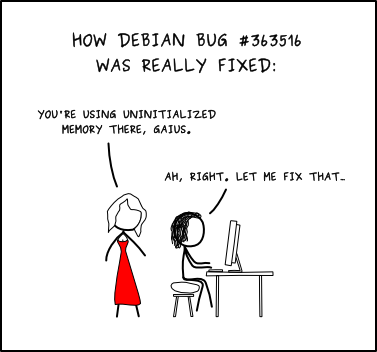
I just found a fairly amusing/depressing (depending on what OS you're using) article about how Windows sucks at generating random numbers. First, we might as well all take a moment to laugh at Debian, as has become the custom every time random number generation is mentioned:


Now that that's out of the way. It appears Windows too fails at randomness, and the test of it is actually really simple. The author of the source article wrote a short PHP script that sets each pixel of a generated image based on the results from the rand() function. Since PHP uses the system libraries for this, it's equivalent to testing the OS. I ran his script on two of my machines, one running LAMP and one WAMP. Guess which is which:


The worst part, and I'm not really clear if this is a PHP problem or Windows, is the image doesn't change under Windows. PHP is supposed to auto-seed the RNG (somehow), but on Windows the image doesn't change unless I add an explicit call to srand(). This doesn't fix the problem, but at least then I get different non-random images. I considered writing "Random Fail" over the one image, but I like the glaring wrongness by itself.

And this is one of the big differences between Windows and Linux. When the OpenSSH vulnerability came out -- and it really depresses me that it took 2 years for somebody to notice, especially with sites like GitHub noticing multiple users with the same SSH key. But anyway, when the OpenSSH vulnerability came out, I got about 6 updates over the next 24 hours, presumably 1 to fix the problem and 5 more to convince me they were sorry. I'm fairly sure this problem will never be fixed (I ran the WAMP test on Vista).

EDIT: There's a nice in-depth exploration of this on Codifies that looked through PHP's source code and determined this is actually PHP's fault, not Windows'. Nonetheless, I maintain that the above paragraph would be true if this were Windows' fault.

31 March 2008

I posted this with Ctrl+P

OK, try this. I think all browsers have a file menu; if your browser doesn't have a file menu, find one that does. Open the file menu. Done? Good job. Now, did you in any way touch the mouse? If you used the mouse to open the menu, you're doing something very wrong.

I was recently forced in class to read a thing about how wonderful the Mac menu system is. Seriously, I had to explain why Mac OS is clearly the superior operating system. For credit. I don't have the lecture material, but suffice to say Mac menus are awesome because the current window's menu is always at the top of the screen, so you can just fling your mouse to the top of the screen and easily click the menu. Now, obviously this ignores the whole still-need-to-position-horizontally problem, which I would think pretty much kills the time gain, but apparently studies say it really is faster. However, this also ignores the you're-using-completely-the-wrong-interface problem. The approximate order of increasing input device speed is:

  1. Prayer

  2. Mouse

  3. Keyboard

  4. Mind reading


The mouse has lots of useful applications, but my definition of "lots" is degrees of magnitude smaller than most people's. People used to watch me use computers in middle school and giggle that I never used the mouse, and while "never" is an overstatement it's fairly accurate compared to the rest of them. The mouse is stunningly overused, because people are too lazy to learn the keyboard ways to do stuff. You don't even have to bind your own shortcuts, just the default ways to do things will massively speed up your productivity.

If you need to run a program, Super+R opens the run dialog in Windows, Meta+F2 in GNOME. I can't remember the last time I manually opened a run dialog, and I almost never use a shortcut or a start menu item to launch a program, it takes forever. Super+D/Ctrl+Meta+D shows the desktop, although hopefully if you're doing this you're not going to need desktop shortcuts anymore so this won't come in handy very often. Here's one nobody seems to know: Super+Pause opens the System properties dialog. Never right click My Computer again. Want to open the start menu? There's a dedicated key on the keyboard for it. Stop clicking the start menu and hit the key with the pretty windows symbol on it. Then hit the first letter of the menu you want to jump to, P for programs, S for search (although Super+F will get you there faster anyway), etc. Just learning basic navigation keys for documents makes life so much easier. You don't need to be a vim ninja, just knowing that Ctrl+End will get you to the end of the document in most programs is helpful. Highlighting by holding Shift and an arrow? Hold down Control too and each arrow press will jump one word instead of one character.

Now, if you're feeling super crazy, you can set up your own hotkeys to do stuff. I don't know the canonical way to do this in Windows, but most programs come with their own way to deal with hotkeys. Under Linux I use XBindKeys, which lets you map keys to commands really easily. Here's one of my entries:

mpc toggle
Alt+Mod4 + space

When I hit Meta+Super+Space, it runs "mpc toggle", which pauses or unpauses my music. I have a bunch for MPD, a bunch of others for MPlayer (for videos), and a handful for miscellaneous other programs. For maximum fun, you can get peripherals. I have a Saitek Command Pad and a Griffin Powermate, and I use Gizmod to control both of them, which lets you write Python scripts to deal with input devices. In short: bonus hotkeys. Global hotkeying is much easier in Linux because everything is doable from the command-line, but I imagine a lot of this can be accomplished in Windows as well.

Side note: Coincidentally (I started writing this like a week ago when I had the evil lecture of mac-loving), there's an article on Coding Horror about how using the keyboard tends to take longer than using the mouse when learning a program. This is probably true, although with hints like letters underlined in menus I would think the keyboard would be able to keep up just about from the beginning. Nonetheless, once you know how to use the keyboard, it's always going to be faster, so if it's a program you use regularly it's definitely worth the effort. Google understands this, and all of their web applications have hotkeys built in, which is something incredibly lacking in web UIs for some reason. I hit Ctrl+S to save my draft of this entry, and Ctrl+P to publish it. In Google Reader (which i highly recommend), J and P jump to the next/previous entry in the list, and V opens the current selection in a new tab. There are other hotkeys, I don't remember them because I don't use them often, but just remembering two or three saves time.

01 March 2008

Dynamic Swap Space

Yet another reason why Linux is amazing. I'm pretty much out of RAM, and running out of swap space, because I'm a process whore and I have way too much stuff open. I don't want to permanently increase my swap space, just at the moment I need more, and I certainly don't want to restart to increase it, that kind of defeats the point.

dd bs=512 count=1M if=/dev/zero of=/tmp/swap
mkswap /tmp/swap
sudo swapon /tmp/swap.


Problem solved. I should've switched to Linux years ago.

28 February 2008

Renice goes to my head

I find myself using renice more and more. If you don't know, it lets you change the scheduling priority of a process that's currently running, anywhere from -20 (highest) to 20 (lowest). Processes all start at 0. So if firefox is starting to take the entire processor (as it has been known to do), i renice it to 10 or so. And then I laugh as my computer speeds up and firefox cries. I've tried taking the opposite approach and changing it to -10 to see if it stops lagging. But it doesn't, it just makes the rest of my computer lag too. So no more chances, firefox. Maybe if a process pleased me I might bump it up, but I doubt it, I'm too busy punishing firefox. Renice is far too much power, I don't think I can handle it.

27 February 2008

Printing PDFs

When I posted my screenshot script I thought of a similar script, which also implements functionality I didn't like. The standard CUPS PDF printer prints to a fixed directory (~/PDF in my case) instead of prompting where you'd like to save it. This annoyed me, so I looked around and discovered the PDF driver's configuration file (/etc/cups/cups-pdf.conf if you use Ubuntu like me) has a directive named PostProcessing. If you set PostProcessing to a script's path, it will run the script after printing the PDF, passing it the printed PDF's filename and the name of the user that printed it. I have mine point to a script I wrote that offers similar functionality as the screenshot script, showing a gnome alert with options to open the PDF or move it somewhere else. Again, I don't write my scripts to be used on other machines, so certain things (like the Adobe Reader icon on line 10) probably won't work for you:

#!/bin/bash
pdf=$1
username=$2
action=${3:-"default"}

export DISPLAY=:0.0

case $action in
default)
notify-more -u low -t 10000 -i /opt/Adobe/Reader8/Resource/Icons/32x32/adobe.pdf.png -n "Open" -x "gnome-open \"$pdf\"" -n "Move" -x "$0 \"$pdf\" \"$username\" move" "PDF Printed" "PDF printed to $pdf" -n "Clipboard" -x "echo -n $pdf | xsel -i -b";;

move)
dest=`zenity --file-selection --title "Save PDF" --save --confirm-overwrite`

if [ "$dest" ]; then
mv "$pdf" "$dest"
if [ -e "$dest" ]; then
notify-more -u low -t 5000 -i /usr/share/icons/gnome/32x32/actions/gtk-paste.png "PDF Saved" "PDF saved to $dest" -n "Open" -x "gnome-open \"$dest\"" -n "Clipboard" -x "echo -n $dest | xsel -i -b"
else
notify-more -u high -t 5000 -i /usr/share/icons/gnome/32x32/emblems/stock_mail-priority-high.png "Save Failed" "Unable to move PDF. The original is stored at $pdf"
fi
fi;;
esac

Screenshots

I've just discovered the most fun command ever:

vncviewer 127.0.0.1


I let my computer recursively explode for a minute before I closed it. I tried to get a screenshot, but I couldn't get my computer to do much until I closed vnc. Speaking of screenshots, however, I figured I'd post my screenshot script. I tried a bunch of different screenshot programs and pretty much hated all of them, so I ended up writing a script that uses ImageMagick's import tool. It depends on two other programs that I use fairly often and really like.

  • Zenity is like a really good version of the standard dialog command. It can show all the same types of dialogs, like calendars and progress bars and whatnot, but they're the standard GTK dialogs so they look good. Most of the time the only dialog type I use is file-selection, which is what the screenshot script uses; I tend to use libnotify to display other types of alerts instead of zenity's info dialogs

  • Notify-more is a python script that uses PyNotify, the python interface to gnome's standard libnotify. Libnotify comes with a command-line tool to access it (notify-send), and notify-more intentionally mirrors it's syntax so you can use them fairly interchangably, but notify-more provides several other features, like the pie display to show when the notification will timeout and buttons that launch commands.


Here's the screenshot script itself. I don't generally write my scripts to be used elsewhere, so it might not be particularly cross-platform. I have PrntScrn bound to launch screenshot root, and Alt+PrntScrn to screenshot window:

#!/bin/bash
action=${1:-"default"}

case $action in
root|window)
echo -n Touching temporary file...
filename=`mktemp /tmp/screenshotXXXX`;
echo done

if [ $action == root ]; then
echo -n Capturing root X window...
import -frame -window root png:$filename
echo done
printText="Captured root window into $filename"
else
echo -n Determining window ID...
windowID=`xdpyinfo | awk '/focus/ {print $3}' | sed s/,//`
echo $windowID

echo -n Capturing window...
import -frame -window $windowID png:$filename
echo done
printText="Captured window $windowID into $filename"
fi

notify-more -u low -t 5000 -i /usr/share/icons/gnome/32x32/devices/video-display.png "Screenshot" "$printText" -n "Open" -x "eog \"$filename\"" -n "Save" -x "$0 save \"$filename\"" -n "GIMP" -x "gimp \"$filename\"";;

save)
filename=$2

if [ "$filename" ]; then
echo -n Getting destination...
newfile=`zenity --file-selection --title "Save Screenshot" --save --confirm-overwrite`
echo done

if [ "$newfile" ]; then
echo -n Moving screenshot to $newfile...
mv "$filename" "$newfile"
echo done

notify-more -u low -t 5000 -i /usr/share/icons/gnome/32x32/devices/video-display.png "Screenshot" "Screenshot saved to $newfile" -n "Open" -x "eog \"$newfile\"" -n "GIMP" -x "gimp \"$newfile\""
fi
fi;;
esac

Daemons wear the pants in our relationship

When I try to use AFS over the internet, I occasionally lose the connection. No problem, I think, I'll just reload it:

% /etc/init.d/openafs-client reload
Stopping AFS services:afsd: Shutting down all afs processes and afs state
afsd: AFS still mounted; Not shutting down


Well, damn. Pretty sure nothing is using it, but hope is not lost, there's a force-reload command too. As in, to force it to reload.

% /etc/init.d/openafs-client force-reload
Stopping AFS services:afsd: Shutting down all afs processes and afs state
afsd: AFS still mounted; Not shutting down


AFS just told me to go to hell, and there's pretty much nothing I can do about it. I never need to unmount it if I try to stop the daemon while still connected, but I'll listen to the error message and try unmounting it's folder instead:

% umount /afs
umount: /afs: device is busy


Just for giggles, let's force that too:

% umount -f /afs
umount2: Device or resource busy


Yeah, totally didn't see that coming. What is the point of having force options if they never work? Somebody finally told me about umount -l, which detaches the filesystem but doesn't actually clean up references to it, which is generally considered a bad idea but actually works, unlike all the approved mechanisms

Water ripple as demands_attention indicator

I came across an interesting effect for Pidgin (or anything else, really). It requires Compiz; specifically, it requires the Water Effect plugin. I'm also pretty sure it requires GNOME. It turns out compiz has a fantastic dbus interface, you can pretty much get, set or trigger anything using it (more info). You can use any language with dbus bindings, but I prefer shell scripting when I can, so I use the included dbus-send program. To trigger the water effect, the command is:

dbus-send --type=method_call --dest=org.freedesktop.compiz /org/freedesktop/compiz/water/allscreens/point org.freedesktop.compiz.activate string:'root' int32:`xwininfo -root | grep id: | awk '{ print $4 }'`


The backtick expression pulls the root window's ID, which all the compiz activation commands require. That command shows a water ripple in the middle of the screen. My goal was to make the Pidgin icon ripple when I got a new message, which I'd noticed in a youtube video once and liked. I found code that uses xwininfo to figure out the location of a gnome panel icon, and combined it with the dbus call to make the ripple effect around a panel icon:

#!/bin/bash
#WINFO=`xwininfo -root -tree | egrep ' (1[2-9]|2[0-4])x(1[2-9]|2[0-4])\+0\+0' | grep "$1" | cut -d ')' -f 2-`
#This WINFO is faster to calculate, but depends on the icon being in the top panel
WINFO=`xwininfo -root -tree -name "Top Expanded Edge Panel"| grep "$1" | cut -d ')' -f 2-`
WIW=`echo $WINFO | cut -d 'x' -f 1`
WIH=`echo $WINFO | cut -d 'x' -f 2 | cut -d '+' -f 1`
WIX=`echo $WINFO | cut -d '+' -f 4`
WIY=`echo $WINFO | cut -d '+' -f 5`
let WAX=WIX+WIW/2
let WAY=WIY+WIH/2

dbus-send --type=method_call --dest=org.freedesktop.compiz /org/freedesktop/compiz/water/allscreens/point org.freedesktop.compiz.activate string:'root' int32:`xwininfo -root | grep id: | awk '{ print $4 }'` string:'amplitude' double:.1 string:'x' int32:$WAX string:'y' int32:$WAY


All that's left is to call the script when a message comes in. The accepted way I found was to change Pidgin's sound settings, but I'd prefer to leave them the way they are. Instead, I wrote a Pidgin plugin (in Perl, because C makes me sad) that waits for the received-im-msg signal and calls the shell script:

use Purple;

%PLUGIN_INFO = (
perl_api_version => 2,
name => "Icon Ripple",
version => "2.0.0",
summary => "Shows water ripples around the Pidgin icon",
description => "Shows water ripples (powered by the Compiz Water Effect plugin) around the Pidgin icon when a message is received",
author => "Michael Mrozek <sysop073\@gmail.com>",
url => "http://pidgin.im",
load => "plugin_load"
);

sub plugin_init {return %PLUGIN_INFO;}

sub plugin_load {
my $plugin = shift;
Purple::Signal::connect(Purple::Conversations::get_handle(), "received-im-msg", $plugin, \&signal_msgin, "");
}

sub signal_msgin { #(account, sender, message, conv, flags)
system("/home/mrozekma/scripts/waterping","Pidgin");
}


This has a side-effect that some may not like of showing the ripple on every received message, not just ones when the window is demanding attention. There's probably a way to change this in the plugin, but I prefer it that way so I haven't explored it.

EDIT: I forgot that I took a screenshot of the ripple effect before I wrote this article, and never included it. It's not very good, but you can see the effect at least: